Reference for the four Core Extension display types: Screen, Fullscreen, Button with Popup, and Tab.
Your Core Extension appears in Nayax Core as one of four display types. The display type controls the layout, where your app sits in the UI, whether it receives element context, and how Nayax delivers the authentication token. Choose the type that fits your use case before you register your app with Nayax.
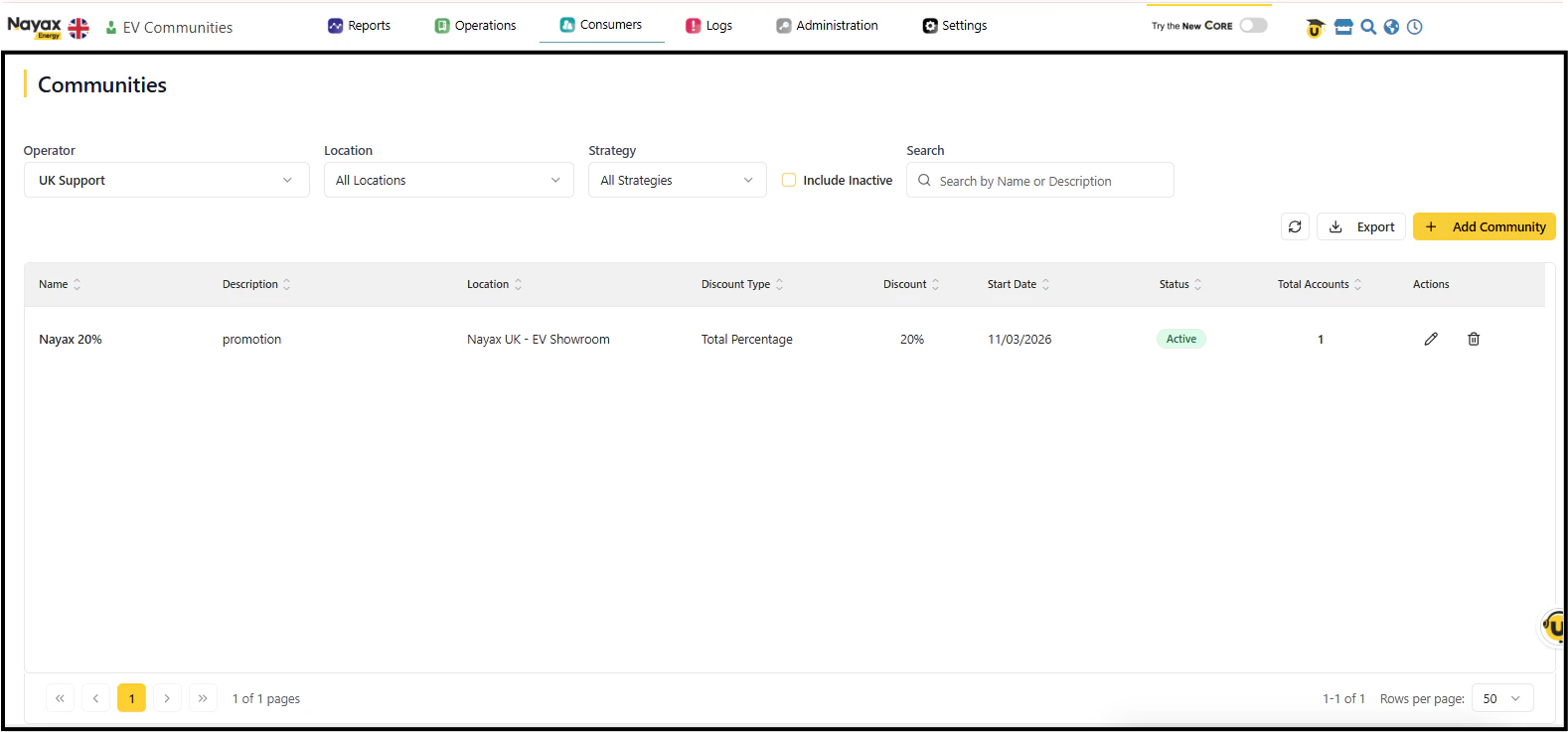
Menu type: AppA Screen extension loads as a full page inside Nayax Core with the platform’s navigation menu still visible. Users reach it by selecting it from the menu.When to use: Your app is a standalone tool or dashboard that does not need to react to a specific element selected in another screen.Token delivery: postMessage from the parent frame. Your app receives token and cortexUrl. No selection context is passed.
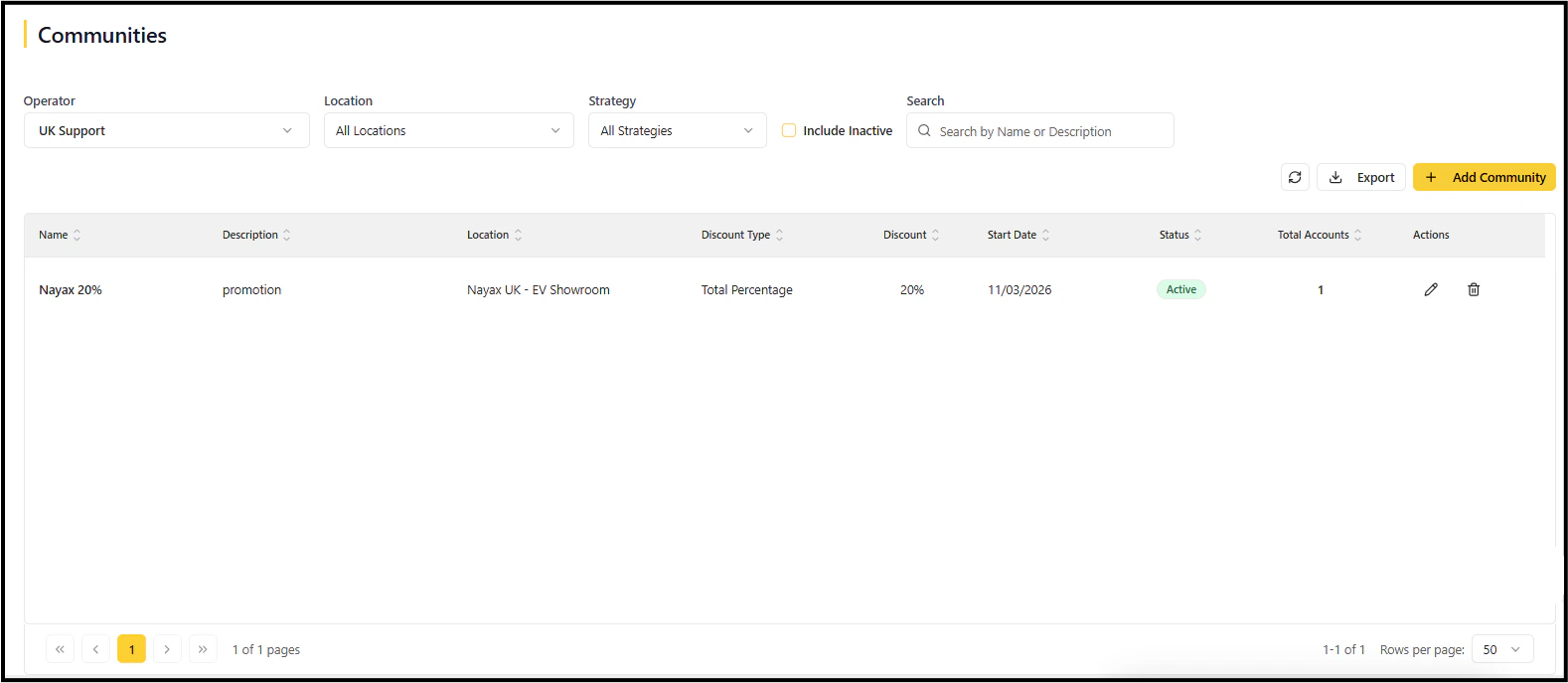
Menu type: AppA Fullscreen extension loads as a full page and replaces the Nayax Core navigation entirely. Your app provides its own navigation.When to use: Your app has its own navigation structure and needs to own the full viewport.Token delivery: The Fullscreen type cannot use postMessage. Contact Nayax to confirm the token delivery method for your Fullscreen extension before building.
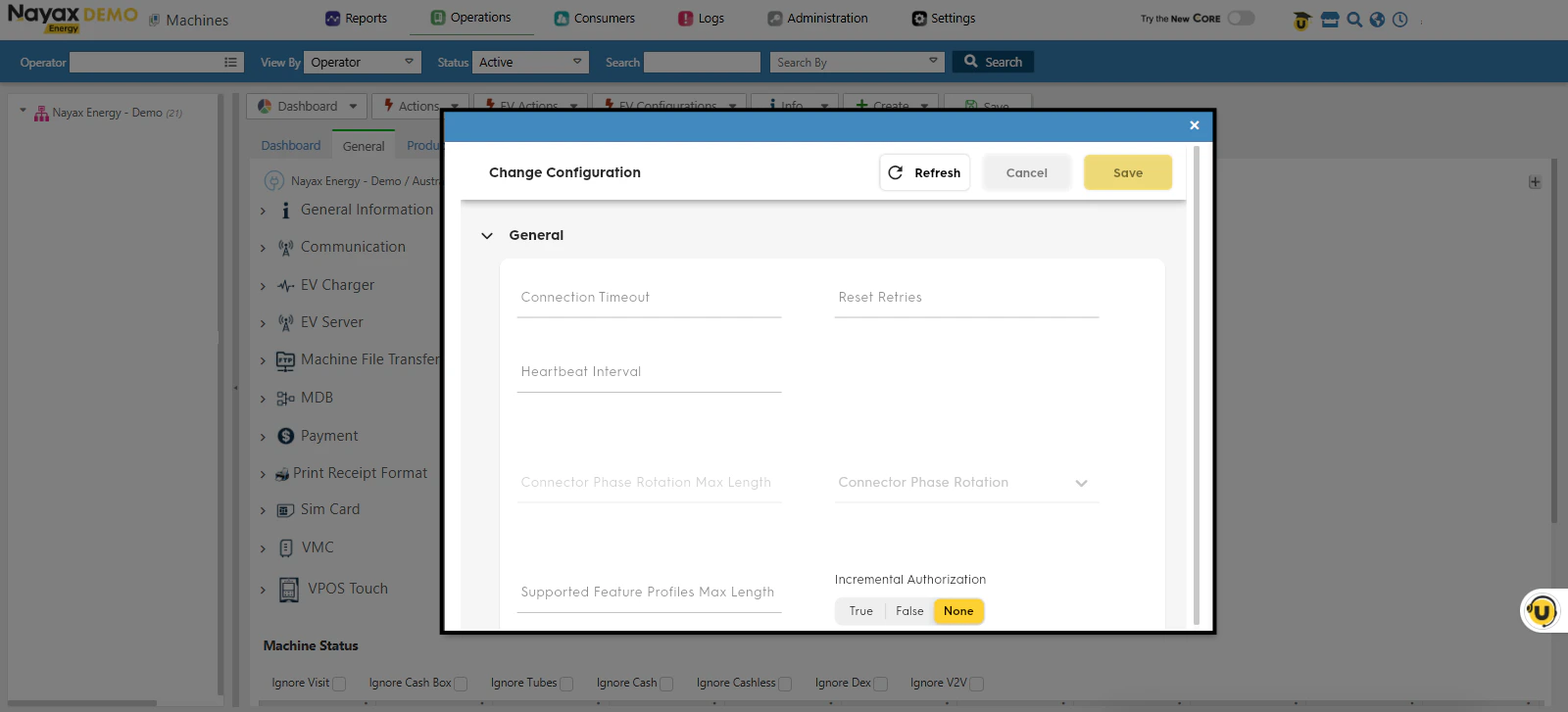
Menu type: App PluginA Button with Popup extension adds a button to an existing Nayax Core screen. Clicking the button opens your app in a modal overlay.When to use: Your app is a contextual action or tool that works on the element currently in focus (for example, a machine-specific diagnostic tool accessible from the Machines screen).Token delivery: postMessage from the parent frame. Your app receives token, cortexUrl, and a selection object containing context about the focused element.
Container required: You must specify a container ID to position the button on the parent screen. See Available containers below.
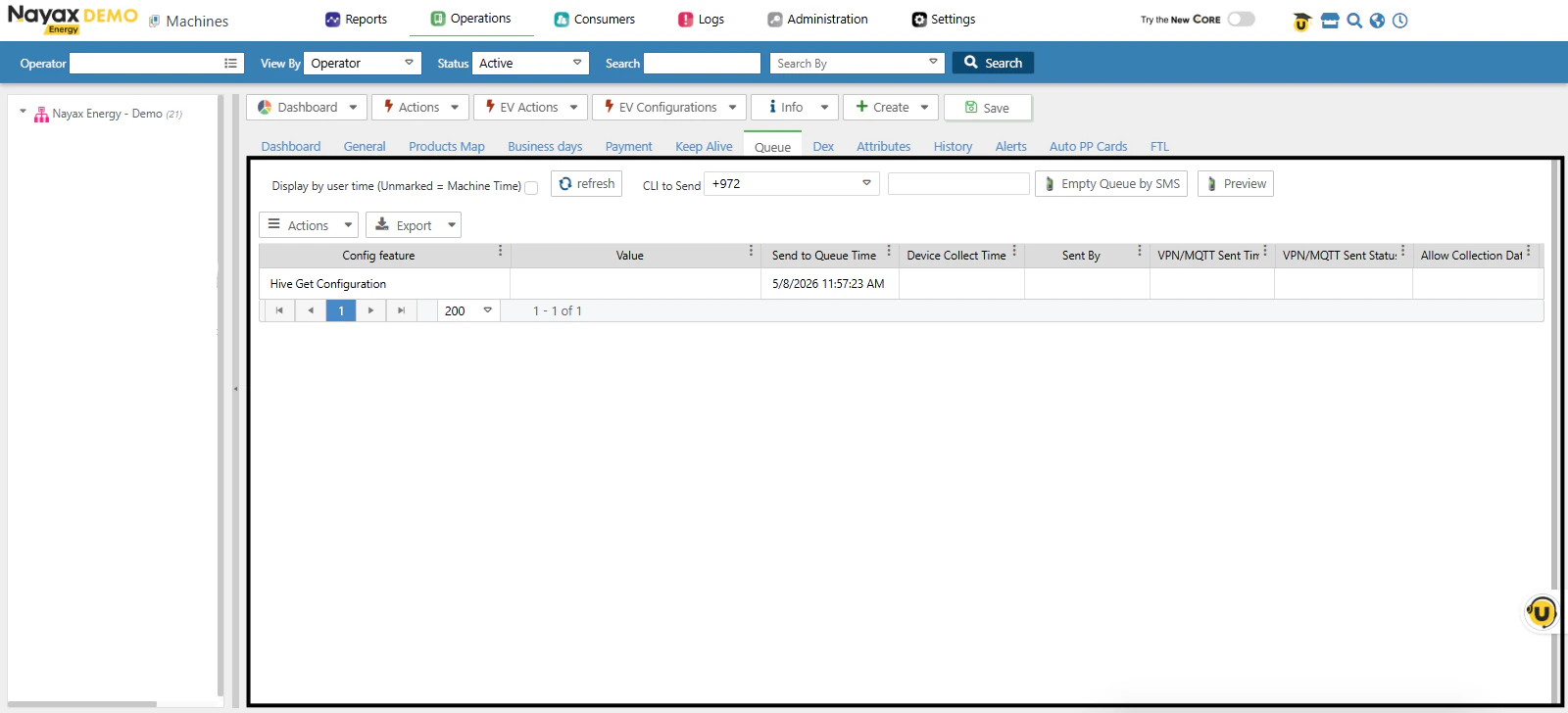
Menu type: App PluginA Tab extension adds a tab to an existing Nayax Core screen. Your app loads inside that tab as an iframe.When to use: Your app is a view or panel that logically belongs alongside existing tabs on a screen (for example, a custom report tab on the machine detail screen).Token delivery: postMessage from the parent frame. Your app receives token, cortexUrl, and a selection object containing context about the focused element.
App Plugin extensions (Button with Popup and Tab) require a container ID that positions the button on the parent screen. The following containers are available: