

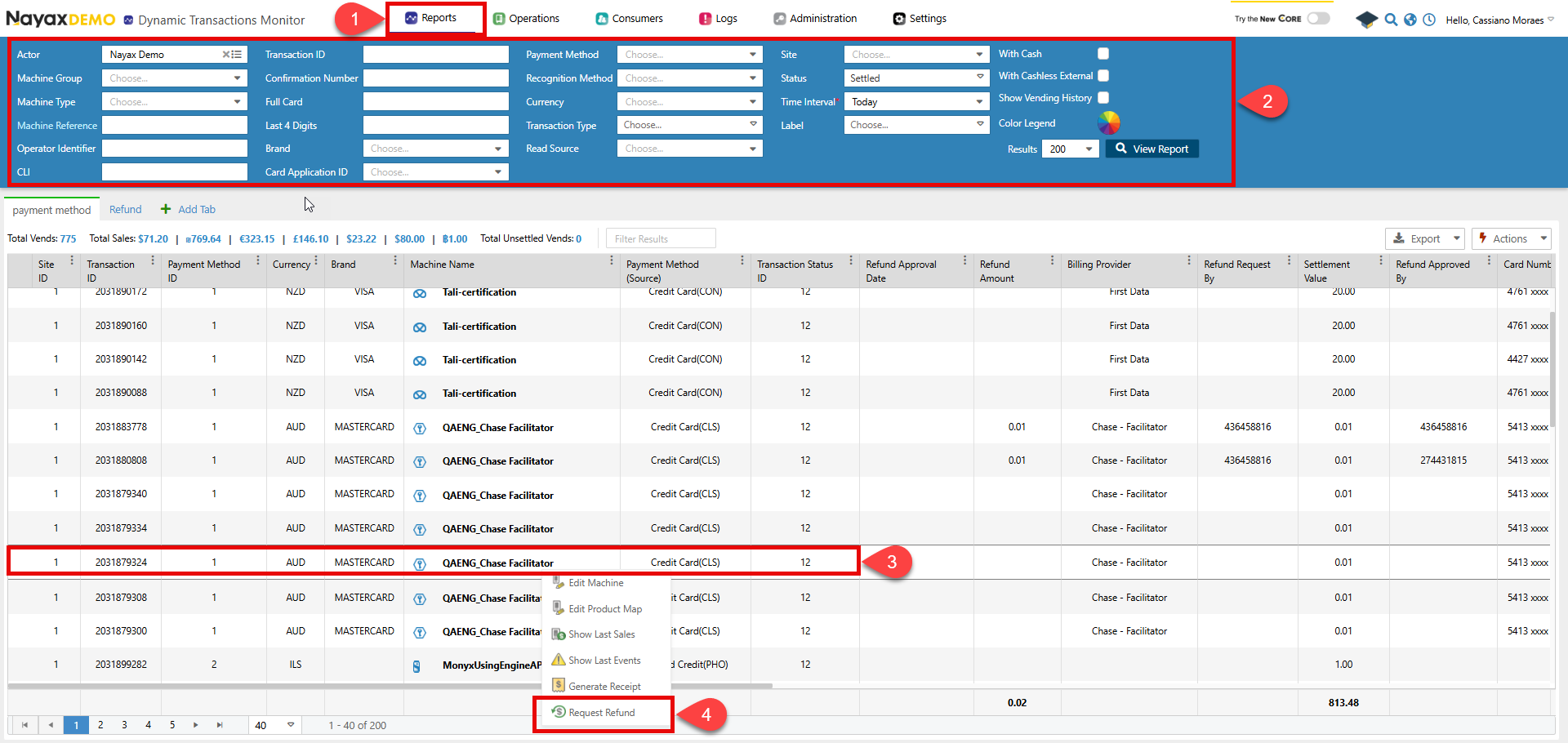
- Access Reports > Online Reports > Dynamic Transactions Monitor.
- Search for the transaction to refund. You can use the filter feature to make this easier.
- Right-click the transaction you want to refund.
-
Click Request Refund
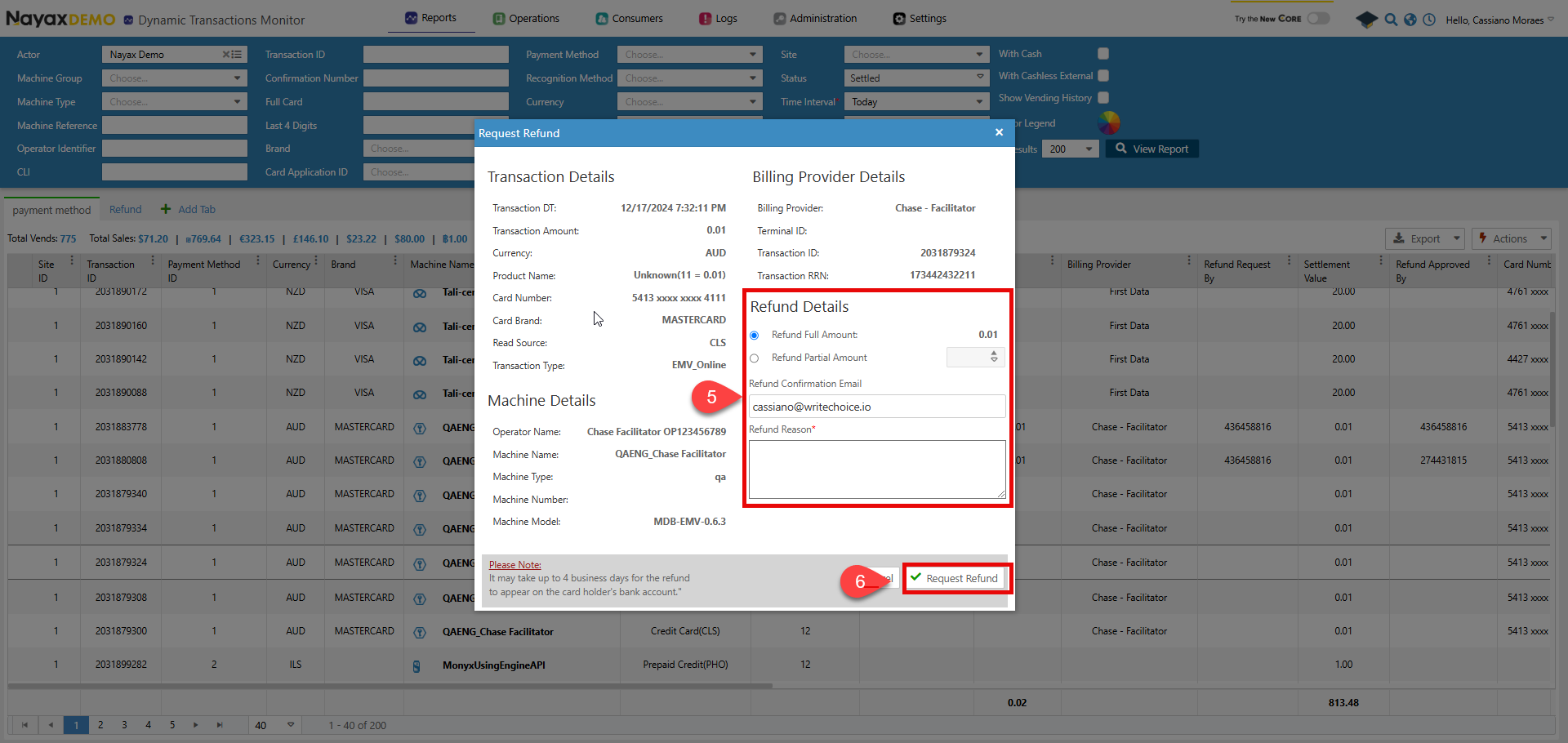
- A pop-up window will appear. In it, choose if the refund is complete or partial and write the reason for the refund.
-
Click Request Refund.
Lynx API
This process can be performed programmatically through the Lynx API. The following endpoint is used to process the refund.Initiating the request
To start the request, use the Request a Payment Refund endpoint to request a refund. Providing the attributes regarding the rebate in the body parameters of the request, as exemplified below:Request
| Name | Type | Description |
|---|---|---|
| RefundAmount | double / null | The amount to be refunded to the customer. |
| RefundEmailList | string / null | A list of email addresses to notify about the refund, separated by commas. |
| RefundReason | string / null | The reason for requesting the refund. |
| TransactionId | int64 | The unique identifier of the transaction for which the refund is requested. |
| SiteId | int32 | The unique identifier of the site where the transaction occurred. |
| MachineAuTime | date-time | The machine’s authorization time is associated with the transaction. |
How to obtain TransactionID and SiteID
RetrieveTransactionId and SiteId from the Lynx API using the Get Last Sales for Machine endpoint with the MachineID. The response object includes both values.
Request Status
Once you send the request, a notification email will be sent to the email address entered in the request parameters. The refund is now in thepending status and will need to be approved or declined. See Approve or Decline a Refund for more details.